
How to Make an iPad Easier to Use for Seniors
Introduction
An iPad can be a very helpful device for an older person. It can be used for video calls, family photos, email, news, games, reading, and keeping in touch.
But an iPad is not always easy to use straight out of the box.
The text may be too small. The screen may feel crowded. Notifications may be confusing. Apps may be hard to find. A few simple changes can make the iPad much clearer and more comfortable to use.
This guide explains how to make an iPad easier for a senior to use, step by step.
Quick checklist
- Make the text larger
- Turn on bold text
- Increase brightness
- Remove unused apps from the Home Screen
- Put FaceTime, Messages, Photos, and Mail on the first screen
- Increase the volume
- Turn off unnecessary notifications
- Set up family contacts and test a FaceTime call
1. Make the text larger
Small text is one of the most common problems.
To increase text size:
- Open Settings
- Tap Display & Brightness
- Tap Text Size
- Move the slider to make text larger
You can also turn on Bold Text in the same area. This makes words easier to read.
For people with reduced eyesight, go to:
Settings > Accessibility > Display & Text Size
Here you can increase contrast, reduce transparency, and make the screen easier to see.
2. Make the screen brighter and easier to read
A dim screen can make an iPad harder to use.
Go to:
Settings > Display & Brightness
Useful options include:
- Increase brightness
- Turn off automatic brightness if it keeps changing too much
- Use light mode if dark mode feels harder to read
- Increase text size
- Turn on bold text
For many seniors, a simple, bright screen with clear text is easiest.
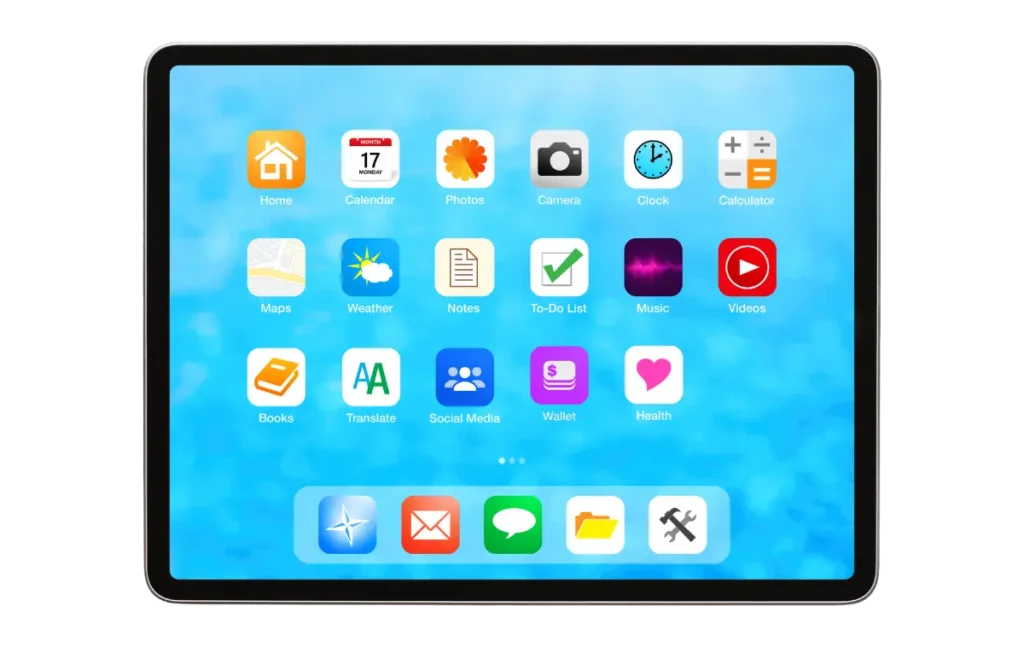
3. Simplify the Home Screen
Too many apps can make the iPad feel confusing.
A good senior-friendly Home Screen might only include:
- FaceTime
- Messages
- Photos
- Safari
- Weather
- Calendar
- Clock
- A favourite news app
- A favourite game or puzzle app
Move less important apps into folders or onto another screen.
To move an app:
- Press and hold the app icon
- Tap Edit Home Screen
- Drag the app where you want it
- Tap Done
Keep the most-used apps on the first screen.
4. Make FaceTime easy to find
FaceTime is one of the most useful iPad features for families.
Place FaceTime on the bottom dock or near the top of the first Home Screen.
Also make sure important family members are saved as contacts.
To add a contact:
- Open Contacts
- Tap the + button
- Add the person’s name
- Add their phone number or email address
- Tap Done
Then test a FaceTime call together.
5. Increase the volume
Many people miss calls or alerts because the iPad is too quiet.
Check:
Settings > Sounds
Increase the ringtone and alert volume.
Also check the physical volume buttons on the side of the iPad.
For video calls, consider using:
- A simple iPad stand
- A Bluetooth speaker
- Comfortable headphones
- Hearing aid compatible settings, if needed
6. Turn on helpful accessibility settings
Apple includes many accessibility features that can make the iPad easier to use.
Go to:
Settings > Accessibility
Useful options include:
- Display & Text Size: Larger and clearer text
- Zoom: Magnifies part of the screen
- Spoken Content: Reads text aloud
- Touch Accommodations: Helps if tapping is difficult
- AssistiveTouch: Adds an on-screen button for common actions
- Subtitles & Captioning: Useful for videos
You do not need to turn everything on. Start with one or two changes.
7. Reduce unwanted notifications
Too many notifications can be distracting.
Go to:
Settings > Notifications
Turn off notifications for apps that are not important.
For many seniors, it is helpful to keep notifications only for:
- Messages
- FaceTime
- Calendar
- Reminders
- Phone-related apps, if used
This makes the iPad feel calmer and less cluttered.
8. Set up family support
Families can help by:
- Saving important contacts
- Creating simple instructions
- Removing unused apps
- Setting up automatic updates
- Writing down the Apple ID password and keeping it somewhere safe
- Checking the iPad every few weeks
It can also help to create a printed one-page guide with instructions such as:
- How to answer a FaceTime call
- How to make a call
- How to charge the iPad
- What to do if something looks suspicious
Final thoughts
An iPad does not need to be complicated. With larger text, a simpler Home Screen, louder sound, and a few helpful settings, it can become much easier to use.
The best setup is not the most advanced setup. It is the one the person feels confident using every day.