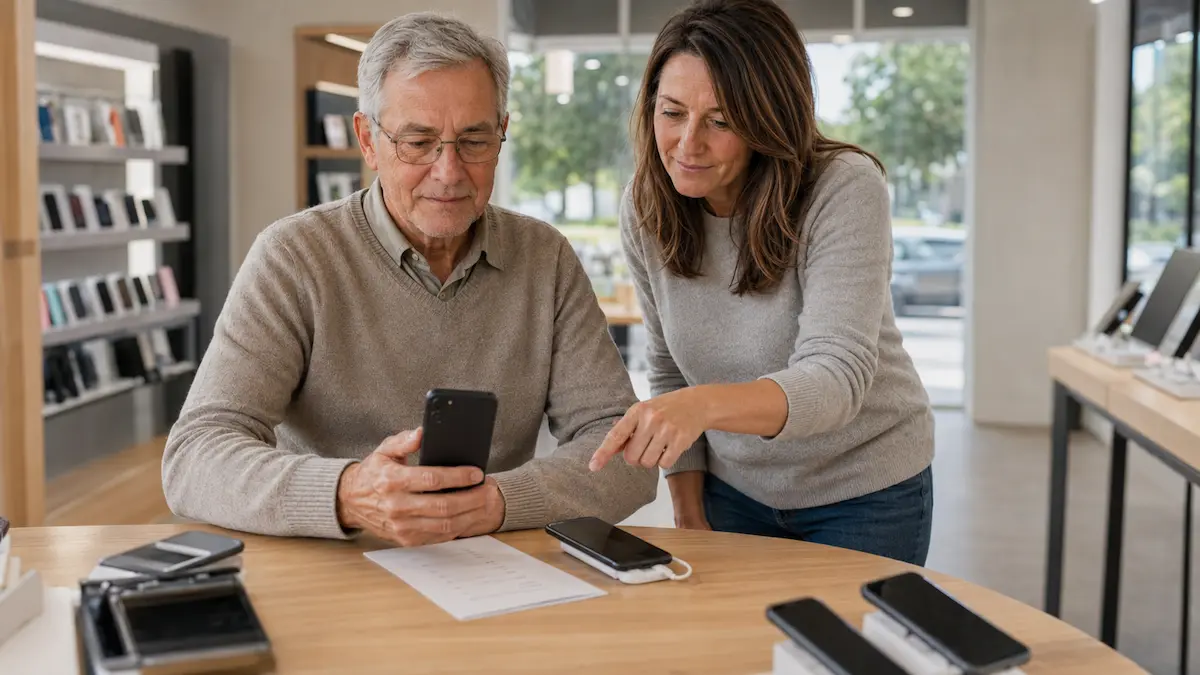
Best Smartphone for Seniors in New Zealand: Simple Buying Guide
This guide explains how to choose the best smartphone for seniors in New Zealand, including iPhone, Samsung Galaxy Android phones, refurbished options and what families should check before buying.
Choosing the best smartphone for a senior is not about finding the most powerful phone.
It is about finding a phone that is easy to read, easy to hear, simple to charge, comfortable to hold, and practical for everyday use in New Zealand.
This guide is for older New Zealanders choosing a smartphone for themselves, and for families helping a parent choose one.
Quick answer
For many seniors in New Zealand, the best smartphone is a simple iPhone or a mid-range Samsung Galaxy Android phone.
An iPhone can be a good choice if the family already uses iPhones, because setup help, FaceTime, photo sharing and family support are often easier.
A Samsung Galaxy A series phone can be a good choice if the person wants a larger screen, good battery life and a more affordable Android option.
The best choice depends less on the brand and more on whether the phone can be made simple enough for everyday use.
|
Option |
Best for |
Watch out for |
|---|---|---|
|
iPhone |
Families already using iPhones, FaceTime, long-term support |
Higher upfront cost, Face ID may need practice |
|
Samsung Galaxy A series |
Larger screen, Android users, better value |
Check update support and hand size |
|
Refurbished smartphone |
Lower upfront cost |
Avoid old models with poor battery or no security updates |
|
Simple phone |
Calls and texts only |
May not support apps, banking, video calls or authentication |
What matters most in a senior-friendly smartphone
A good smartphone for an older person should be comfortable to use every day.
Before comparing models, check these practical points.
A clear, readable screen
Look for a screen that is large enough to read without strain.
A bigger screen can help with:
- Reading text messages
- Seeing caller names clearly
- Using maps
- Looking at photos
- Reading bank or health app screens
- Video calling family
Very small smartphones can be harder to use, even if they fit neatly in a pocket.
Loud, clear sound
Check whether the phone is loud enough for calls, ringing and speakerphone use.
This matters if the person:
- Often misses calls
- Uses speakerphone
- Has mild hearing difficulty
- Wants clearer video calls
- Uses the phone in different rooms around the house
Also check whether the phone works well with any hearing aids or Bluetooth accessories the person already uses.
Simple controls
A smartphone does not need to stay complicated.
Both iPhone and Android phones can be adjusted to make them easier to use. You can increase text size, simplify the home screen, remove unused apps and add important contacts to the main screen.
The key question is not “Which phone has the most features?”
A better question is: “Can this phone be set up so the person only sees what they actually use?”
Many of the same ideas also apply to tablets, so families may also find our guide to making an iPad easier to use for seniors useful.
Good battery life
Battery life matters more than camera quality for many seniors.
A phone that lasts through the day is less stressful. It also reduces the chance of the person avoiding the phone because they worry about charging it.
When comparing phones, look for:
- A battery that comfortably lasts a normal day
- A charging cable that is easy to plug in
- A case that does not block the charging port
- A charging routine that fits normal habits
Family support
This is one of the most important points.
A phone is easier to keep using when someone nearby understands it.
If the family mostly uses iPhones, an iPhone may be easier to support.
If the family mostly uses Android phones, a Samsung or other Android phone may make more sense.
The best smartphone is often the one the support person can explain clearly.
For a more family-focused decision process, see our guide to how to choose a phone for an older parent in New Zealand.
Security
A smartphone should still receive software and security updates. This matters if the person uses email, banking apps, health apps, passwords, photos or two-factor authentication.
Before buying, check whether the model is still supported and how long updates are expected to continue.
Best smartphone options for seniors in New Zealand
There is no single best phone for every senior. These are the main types worth considering.
Option 1: iPhone for simple family support
An iPhone can be a good choice for seniors who want a reliable smartphone with strong family support.
Apple’s New Zealand iPhone range changes over time, so compare the current models on Apple NZ or at a local retailer before buying.
An iPhone may suit someone who:
- Has family members who already use iPhones
- Wants FaceTime for video calls
- Wants easy photo sharing with family
- Prefers a consistent layout
- Wants strong accessibility settings
- Is likely to keep the phone for several years
Things to check before choosing an iPhone
Check whether the person is comfortable using Face ID instead of a home button.
Newer iPhones no longer rely on the old round home button. For some seniors this is fine after setup. For others, it may take practice.
Also check:
- Screen size
- Storage size
- Monthly plan cost
- Case and screen protector availability
- Whether the family can help set up Apple ID, FaceTime, contacts and passwords
Plain-English verdict
Choose an iPhone if family support is the priority and the person is comfortable learning a slightly different way to unlock and navigate the phone.
Option 2: Samsung Galaxy A series for a larger Android phone
Samsung Galaxy A series phones are worth considering for seniors who want an Android smartphone without paying for a top-end model.
Samsung New Zealand has a dedicated Galaxy A smartphone section, including compare tools for choosing between models.
A Samsung Galaxy A phone may suit someone who:
- Wants a larger screen
- Wants good everyday battery life
- Wants a more affordable smartphone
- Already uses Android
- Has family members who understand Samsung phones
- Wants access to common apps such as WhatsApp, Gmail, Google Maps and banking apps
Things to check before choosing a Samsung Galaxy A phone
Not every Galaxy A phone is the same.
Compare:
- Screen size
- Storage
- Battery life
- Camera quality, if photos matter
- How long it will receive security updates
- Whether it feels too large or heavy in the hand
Plain-English verdict
Choose a Samsung Galaxy A phone if the person wants a practical Android smartphone with a large screen and sensible everyday features.
Option 3: A refurbished or previous-generation smartphone
A refurbished or previous-generation phone can be a sensible option when budget matters.
This can work well if the phone is still supported, in good condition and has a fresh battery or good battery health.
A refurbished phone may suit someone who:
- Only needs calls, texts, photos, email and video calls
- Does not need the latest camera
- Wants a lower upfront cost
- Has family who can check the phone before use
Be careful with:
- Very old phones
- Phones with poor battery health
- Phones that no longer receive security updates
- Overseas models that may not suit New Zealand networks
- Phones sold without a warranty or clear returns policy
- Because New Zealand’s 3G networks have been switched off, avoid older phones that rely on 3G for calls, texts or data. Before buying, check that the phone supports 4G calling or 5G on the mobile provider the person will use.
Plain-English verdict
A refurbished phone can be good value, but avoid anything too old. A cheap phone is not helpful if it becomes slow, unreliable or unsupported.
Option 4: A basic smartphone instead of a simple phone
Some seniors are choosing a smartphone because they need apps.
For example:
- Banking apps
- Medical or appointment apps
- Two-factor authentication
- WhatsApp or Messenger
- Photos and video calls
- Maps
- SuperGold or transport information
If the person only wants calls and texts, a simple phone may still be better.
If the person mainly wants a larger screen for video calls, reading or photos, a tablet may be easier than a smartphone. See our guide to the best tablets for seniors in New Zealand.
If apps are becoming necessary, a smartphone may be the more practical long-term choice.
iPhone or Android for seniors: which is easier?
Both can work well.
The easier option is usually the one the person’s family or support person understands best.
Choose iPhone if:
- Family members use iPhones
- FaceTime matters
- The person wants a consistent layout
- They are likely to keep the phone for several years
- The budget allows it
Choose Android if:
- The person already knows Android
- They want a larger screen for the price
- They prefer Google apps
- Family members use Samsung or Android phones
- Budget is a key consideration
Avoid choosing based only on price
The cheapest smartphone is not always the easiest.
A very cheap phone may have:
- A duller screen
- Slower performance
- Shorter update support
- Less storage
- A weaker camera
- Poorer battery life
For a senior who wants a phone to last, it is usually better to buy a reliable mid-range option than the cheapest model available.
Smartphone buying checklist for seniors
Before buying, check the phone against this list.
- The screen is easy to read indoors and near a window
- Text size can be increased
- Ring volume is loud enough
- Speakerphone is clear
- The phone is not too heavy
- The charging cable is easy to use
- The person can unlock the phone comfortably
- Emergency contacts can be set up clearly
- The home screen can be simplified
- The phone works on a New Zealand mobile network
- The monthly plan is easy to understand
- The phone has enough storage for photos and apps
- A case and screen protector are available
- Someone can help with setup
- The warranty and returns policy are clear
What to set up before handing the phone over
A smartphone is much easier when it is set up properly from the start.
Do these steps before handing the phone over or using it as the main everyday phone.
1. Make the text larger
Increase the text size so messages, contacts and menus are easier to read.
Also check display zoom or screen zoom if available.
2. Remove unnecessary apps from the home screen
Keep the first screen simple.
Useful apps might include:
- Phone
- Messages
- Camera
- Photos
- Contacts
- Weather
- Maps
- Video calling app
- Banking app, if used
Move anything confusing or unused to another screen or folder.
3. Add important contacts
Add close family, neighbours, the GP clinic and any other important contacts.
Use clear contact names, such as:
- Sarah daughter
- John son
- GP clinic
- Neighbour Mary
Avoid nicknames that may be confusing later.
4. Set up emergency information
Check the phone’s emergency contact and medical information settings.
This is not a replacement for emergency services or a medical alarm, but it can help keep important information easier to find.
5. Turn on automatic updates
Software updates help keep the phone more secure and reliable.
Turn on automatic updates if the person is comfortable with that, or set a routine where a family member helps check updates regularly.
6. Set up Find My or location sharing carefully
Location sharing can be useful for some families, but it should be discussed clearly.
Explain:
- What is being shared
- Who can see it
- How to turn it off
- When it may be useful
Keep this respectful and practical.
7. Practise the basics
Do not hand over the phone and assume everything is clear.
Practise:
- Answering a call
- Making a call
- Reading a text
- Sending a text
- Taking a photo
- Finding a contact
- Charging the phone
- Turning the volume up
- Using speakerphone
A short practice session is often more useful than a long explanation.
It is also worth helping the person recognise suspicious messages. Our guide to spotting text message scams in New Zealand explains the main warning signs.
Before you finish
Download the free NZ Family Tech Safety Checklist to help check phone safety, passwords, scam messages, emergency contacts and medical alarm details.
What about emergency features?
Some smartphones include helpful features such as emergency contacts, location sharing, fall-related features through connected watches, or emergency calling shortcuts.
These features can be useful, but they should not be oversold.
Before relying on any emergency feature, check:
- How it works
- Whether it needs mobile reception
- Whether it needs battery power
- Whether it has been tested
- Whether the senior knows how to use it
- Whether family members understand what happens when it is activated
For some people, a dedicated medical alarm may still be more suitable than relying only on a smartphone.
Best overall choice
For many seniors in New Zealand, the best overall smartphone choice is either:
- A current or recent iPhone, if family support and FaceTime are important
- A Samsung Galaxy A series Android phone, if a larger screen and better value are priorities
The final choice should come down to the person’s eyesight, hearing, confidence, budget, support network and everyday needs.
Final recommendation
Start with the person, not the phone.
Ask what they actually need to do each week:
- Call family
- Receive texts
- Take photos
- Use video calls
- Check email
- Use banking or health apps
- Read larger text
- Feel confident carrying the phone outside the home
Then choose the simplest phone that can do those things comfortably.
A well-set-up mid-range smartphone is usually better than a high-end phone with features the person will never use.
Next steps
If you are choosing for yourself, visit a local New Zealand retailer or mobile provider and hold the phone before buying.
If you are choosing for a parent, sit beside them and compare two or three options together.
After buying, spend time setting up the phone properly. Larger text, clear contacts, a simple home screen and a short practice session can make a bigger difference than the phone model itself.
FAQ: Best smartphone for seniors in New Zealand
What is the easiest smartphone for seniors?
The easiest smartphone is usually the one that can be set up simply and supported by family. For some seniors this will be an iPhone. For others it will be a Samsung or other Android phone.
Is iPhone or Android better for seniors?
Neither is best for everyone. iPhone may be easier if family members already use Apple devices. Android may be better if the person wants a larger screen for the price or already knows Android.
Should a senior get a smartphone or a simple phone?
Choose a simple phone if the person only wants calls and texts. Choose a smartphone if they need apps, video calls, photos, email, banking apps or two-factor authentication.
Are cheap smartphones good for seniors?
Some are fine for basic use, but very cheap phones can be slow, harder to read or less reliable over time. A dependable mid-range phone is often a better long-term choice.
What should families set up first?
Start with larger text, louder volume, important contacts, emergency information, a simple home screen and a clear charging routine.